Description
This article describes how to check for and install updates in Google Chrome, Microsoft Edge, and Mozilla Firefox web browsers. Keeping your browser up to date helps ensure improved security and performance.
Checking for Google Chrome Updates
- Click the three stacked dots in the upper-right corner of Google Chrome.
- Hover over or click Help.
- Click About Google Chrome.
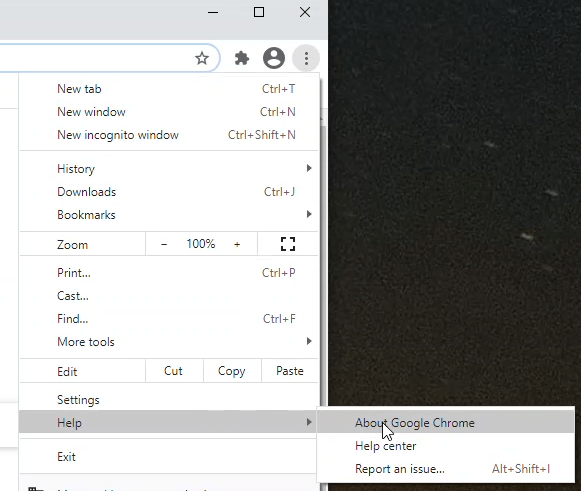
Note: Chrome will automatically check for updates and let you know if it is up to date.
- If updates are available, click Relaunch when prompted to close and reopen Chrome.
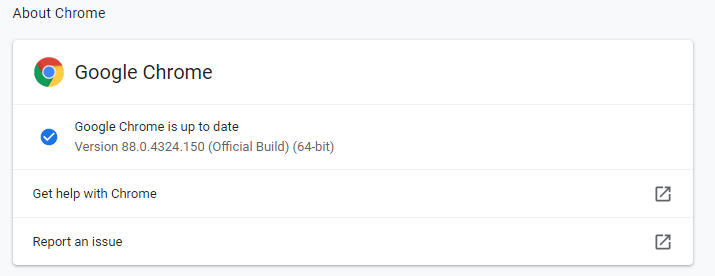
How to video: https://www.screencast.com/t/ke5uENGK5189
Checking for Microsoft Edge Updates
- Click the three dots in the upper-right corner of Microsoft Edge.
- Click Help and feedback.
- Click About Microsoft Edge.
Note: Edge will automatically check for updates and let you know if it is up to date.
- If updates are available, follow the prompt to restart Microsoft Edge. Edge will close and reopen automatically.

How to video: https://www.screencast.com/t/IRAceXuF
Checking for Mozilla Firefox Updates
- Click the three stacked lines in the upper-right corner of Firefox.
- Click Help.
- Click About Firefox.
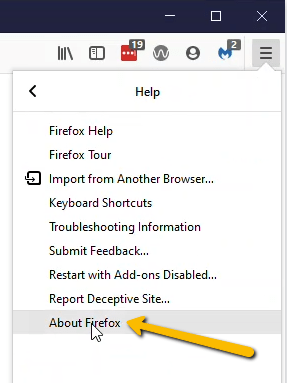 Click on About Firefox to check for updates.
Note: Firefox will automatically check for updates and let you know if it is up to date.
- If updates are available, follow the prompt to relaunch Firefox. Firefox will close and reopen automatically.
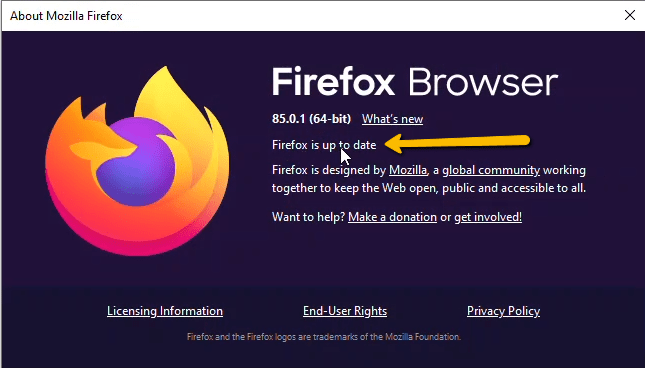 Firefox will automatically check for updates and let you know if it is up to date on the About pop-up page.